

Google Drive isn’t broken. But for small teams and solo entrepreneurs running active client projects, it creates a specific kind of friction — scattered docs, folder structures that make sense to you and nobody else, and zero native way to turn a document into a collaborative workspace. Dropbox Paper vs Google Drive isn’t a storage debate. It’s a workflow debate. And once you understand what Dropbox Paper actually does differently, the choice for project-based collaboration becomes a lot more obvious.
What Most People Get Wrong About Document Collaboration Tools
Most entrepreneurs pick a document tool based on what they already use — Gmail users default to Google Drive, Mac users default to iCloud, and so on. That’s a convenience decision, not a workflow decision.
The problem is that “where files live” and “how teams actually work on projects together” are two completely different problems. Google Drive solves storage and basic editing. It does not solve meeting notes that connect to action items, briefs that link directly to related files, or real-time collaborative docs that don’t require 14 browser tabs open simultaneously. Dropbox Paper was designed specifically for the second problem—and most people who’d benefit from it have never opened it.
Additionally, the assumption that switching tools means migrating everything is what keeps most teams stuck on suboptimal workflows for years.
Dropbox Paper vs Google Drive: Where Paper Actually Wins
Point 1: Paper turns documents into living project workspaces — not just text files.
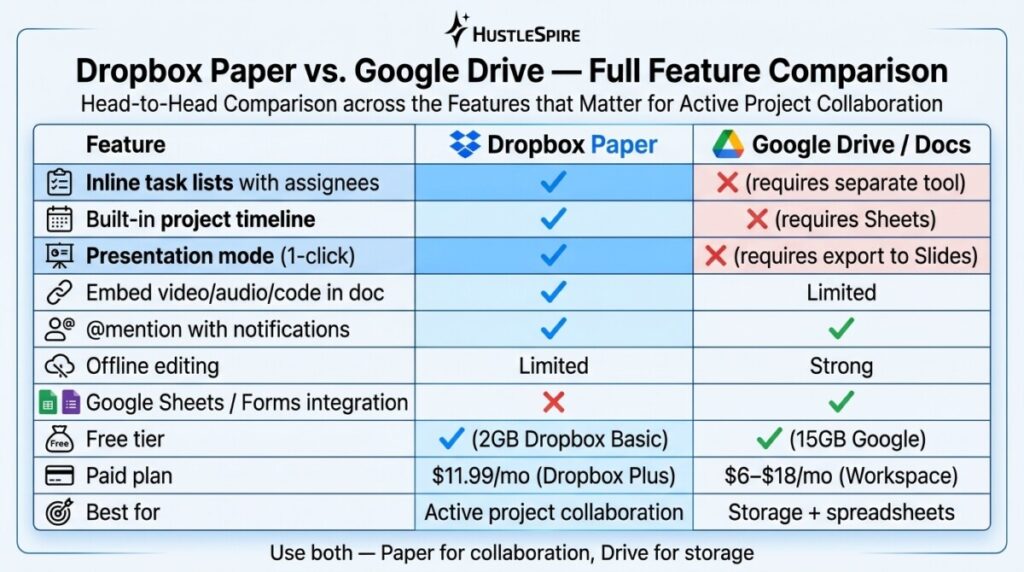
A Dropbox Paper document isn’t just a place to write. You can embed to-do lists with assignees and due dates directly inside a document; mention team members with @tags that trigger notifications; and embed video, audio, code, or linked Dropbox files — all in one view. A single Paper doc can serve as your project brief, meeting notes, task list, and file repository simultaneously. One freelancer I know replaced four separate tools — a Google Doc, a Trello board, a shared Drive folder, and a Slack thread — with a single Paper workspace per client. Her onboarding time dropped from 45 minutes to 12.
Point 2: The timeline view solves a problem Google Docs doesn’t acknowledge.
Dropbox Paper has a built-in Timeline feature that turns your document into a project schedule — drag-and-drop milestones, assignable tasks, and date ranges, all without leaving the doc. Google Docs requires you to build this in a separate Sheets file, then link it, then maintain two documents instead of one. For freelancers managing client projects and deliverables across multiple accounts, having your timeline inside your brief eliminates an entire category of “wait, which version is current?” confusion.
Point 3: Paper’s presentation mode makes client delivery look intentional.
Google Docs can be exported to Slides, but the process is clunky and the output generic. Dropbox Paper has a native presentation mode — one click turns any document into a clean, full-screen display you can walk a client through without switching apps. For client-facing deliverables like strategy decks, content calendars, or project proposals, this feature alone justifies the tool. Clients notice when your delivery looks polished. It signals that your process is organized — which affects how they perceive your rates.
Many entrepreneurs save huge amounts of time by using AI tools to handle repetitive tasks like writing proposals. That strategy is explored in The AI Tool That Writes Your Fiverr Proposals in 30 Seconds (Free Version Included).

Point 4: Dropbox Paper is free — with meaningful limits.
Paper is included with any Dropbox account. The free Dropbox Basic plan (2GB storage) gives you full access to Paper’s document and collaboration features. Dropbox Plus at $11.99/month (billed annually) unlocks 2TB of storage and extended version history. If you’re already building a lean productivity stack and paying for Dropbox storage anyway, Paper costs you nothing additional. The key limitation: Paper works best when your team is also on Dropbox—external collaborators without accounts have limited access.
Dropbox Paper Isn’t a Google Drive Replacement
Let’s be direct. Dropbox Paper doesn’t replace Google Drive for everything. If your workflow depends on Google Sheets, Google Forms, or deep Gmail integration, you’re not going anywhere. Paper also lacks offline editing as robust as Google Docs, which matters if you work on planes or in low-connectivity environments.
The right framing isn’t “which tool replaces the other”—it’s “which tool handles active project collaboration better.” For that specific use case, Paper wins clearly. Use Google Drive for storage and spreadsheets. Use Dropbox Paper for everything that involves a team, a deadline, and a deliverable.

Test Paper on One Real Project
Create a free Dropbox account and open Paper. Pick one active client project or side hustle task with at least one collaborator. Build a single Paper doc that contains your brief, your to-do list with assignees, and your timeline. Use it exclusively for that project for two weeks. If it doesn’t cut your coordination back-and-forth by at least 30%, go back to what you had. But if you’re like most people who test it on a real project, you’ll open Dropbox Paper in a new tab before you finish reading this sentence.
Similarly, small experiments with no-code tools can quickly grow into full businesses, showing how smarter workflows lead to bigger results. That concept is explained in The No-Code Website Secret That Turned My 1-Hour Experiment Into a Real Business.
